What Should Community Owners Be Cautious About?
Although there is a way through your site pages and managing the access to a file or page, we do not actively advise community owners to use those options as it may cause irreversible access issues to your community. We would let users know to proceed with caution when it comes to editing default accesses. The support team may not have the expertise in helping you set up or fix your permissions.
What Are the Default Aspects of a SharePoint Community Space?
By default, a SharePoint community space has two aspects: the SharePoint site and the Teams space. The SharePoint side works as a wiki to share information. Every registered user of GCX, which we call visitors, will have access to view your SharePoint pages and your public documents. This is a feature by design on GCX. Members can edit pages.
How Does the Teams Space Work?
The Teams space is where users will request membership and have access to a members-only space. You can also share members-only documents. On Teams, users need approval from owners to join. If you want to disable this feature, it is possible in your Teams settings under privacy.
Where Can I Find More Details?
For more details, refer to roles and permissions in the FAQs (sharepoint.com).
How Should I Manage My Documents?
For your documents, make sure to put them inside your public Documents if you want registered users to have access without them receiving an error and you having to approve them. This will cause unique permissions and, in the long run, access and permissions issues. For documents that will be accessible only to members and owners they should be placed inside the Documents library. Members are able to edit those documents.
What Expertise Does the Support Team Have?
We do not have the expertise to fix certain permission issues. My biggest advice would be to not remove the support team access when creating pages so we can continue to support our users.
How Can I Share Access Without Causing Issues?
Instead of sending the link and sharing, which can cause access issues, users can search for the community on GCX, or you can add them manually using their email.
What Should I Do If Permission Settings Are Modified?
If you notice that the permission settings on your page have been modified, it is important to take immediate action to restore the default settings. Keeping the default settings is highly recommended, especially for critical areas like the homepage. Ensure that visitor access is maintained as it is designed to be accessible by default. If you need to invite someone, use the members list to add members rather than altering default permissions. This approach helps prevent access issues and maintains the intended functionality of your SharePoint site.
How Can You Restore and Maintain Your Homepage Settings in SharePoint?
I suspect your homepage has been moved and reassigned. The homepage is linked to the identity of your community, making it searchable. If it is renamed, moved, or reassigned, it may cause issues with your pages and their interlinking.
To avoid such issues, it is highly recommended to maintain the default settings, especially for critical areas like the homepage. Ensure that visitor access remains intact, as it is designed to be accessible by default.
If you have deleted the Home page please immediately restore it from your recycling bin.
Steps to reset your homepage to the default:
Go to site contents:
https://gcxgce.sharepoint.com/teams/ENTERCOMMUNITYID/SitePages/Forms/ByAuthor.aspx
Navigate to site pages.
Find system account.
Select home.aspx.
Click on the three dots.
Choose make homepage.
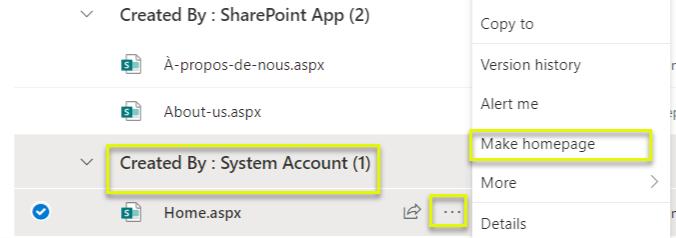
Important Note: Anything under the system account and SharePoint App, including the home page, should never be deleted.
How Do I Reset Permissions to Default on SharePoint?
To reset permissions to default on SharePoint, go to “Site Permissions” or “Library Settings” and select “Delete unique permissions.” Confirm the action to revert to the default inherited permissions.
How Do I Manage Roles on a SharePoint Site?
Managing roles on a SharePoint site involves setting permissions and managing who can access and edit content. While SharePoint and Teams are integrated, the role management is primarily done through SharePoint. We do recommend keeping the default permissions.
How to Manage Roles on a SharePoint Site
Access Site Permissions:
Click on the “Settings” gear icon in the top-right corner.
Select “Site Permissions” from the dropdown menu.
Manage Permissions:
From the “Site Permissions” page, you can see the different groups (Owners, Members, Visitors) and their respective permissions.
What Are Some Other Ideas for Managing Permissions?
Currently, you could have unique permissions in place which is blocking the access. In manage access (3 dots), you would need to reset the access of the file. Either you delete the file and reupload it or remove the unique permissions.
What If Members Cannot Access the Page?
It seems that you have a lot of restrictions on your page that even members cannot access. We recommend not changing permissions. If you do, you need to track it to be able to know what was removed. Everyone was removed from your page, including yourself and the support team. This is what this sign means.
What Solutions Have Been Offered?
You need to decline every pending request. The decline is working.
You need to copy your page either to another folder or to your templates folder. That way, the permissions will be reset as it will create a new page. The actual page will stay there as it cannot be deleted or moved. Here is the procedure:
Go to settings/Site pages, then 3 dots, then copy to.
Copy either to the template folder or to the Fr folder.
Then I suggest you keep all the default permissions and republish the page. Members of your community should have access to all your pages without restrictions.
If those solutions do not work for you, then we will create a ticket for our development team, which could take weeks to solve.
Please let us know if that fixed your issue.
What Should the Settings Look Like?
Settings should look like this.
How to make Teams channels private
The channels cannot be restricted to the members, but you can have moderators for your channels.
How can I keep my contents viewable and editable by members only?
To keep your contents viewable and editable by members only, we recommend using Microsoft Teams for collaboration. Since privacy is a primary concern, using Microsoft Teams for collaboration is a better approach to achieve that. In Teams, you can create channels that would only be accessible to your community members and choose/assign moderators within a channel. This allows members to share and collaborate on documents without exposing content to the broader SharePoint audience.
How should I manage SharePoint access?
If you still think there is a need to restrict your SharePoint access beyond the default Roles and Permissions, you should be cautious while modifying access rights in settings to avoid potential misconfigurations.
Where should I store and manage documents?
Store and manage documents within Teams channels or inside the document library, not to confuse with your public library that is accessible to visitors. It means any registered users that have a GCX account.
What should I know about members' access?
Members will have access to edit your pages and upload documents. However, visitors will not be able to do so.
How do I ensure that the SharePoint site is set to private?
Ensure that the SharePoint site is set to private on the team in the manage teams setting. This will allow you to approve membership requests. Setting your SharePoint private does not mean no one will see or search and find your community. It means users have to submit a request to join and you have the ability to accept or reject the request. In other words, you have control over your community membership.
Is every SharePoint site searchable on GCX?
Yes, every SharePoint site is searchable on GCX and visitors will see your membership list; this cannot be hidden.
How should I configure permissions?
Configure permissions carefully to prevent unauthorized access or issues like owners being unable to upload or manage files. We advise users not to try to reconfigure their permission settings. If users feel that it is necessary to do it, we recommend modifying permission at a smaller scale, testing it with users before making further changes. Some changes may be irreversible and our team does not have full access to support permissions issues.
Can site owners assign view-only rights to members?
While site owners have the ability to assign view-only rights to members, we highly advise you to be cautious of any changes you want to make to your community as it is not part of our best practices on GCX. You may start creating rules that would be very difficult to revert.
How can I use navigation settings to keep pages hidden?
You can publish pages without adding them to the navigation bar. This keeps them hidden from general view but they are accessible to those who have the direct link or when users go to site pages and look for them.
Why Should I Only Approve Membership Requests Through Teams?
As a community owner, it's important to approve membership requests only through the appropriate Teams spaces. Requests that come through Outlook are not for joining the Team—they're actually asking for access to specific documents. Approving these can create unique permissions, which may unintentionally affect how content is shared with you and other members.
To maintain consistent access and avoid permission issues:
Approve membership requests only in Teams.
If someone needs access to a document, ensure it's stored in a public library, or that the user is a Team member first.
This helps protect the integrity of your community's content and ensures everyone has the right level of access.
Was this article helpful?
That’s Great!
Thank you for your feedback
Sorry! We couldn't be helpful
Thank you for your feedback
Feedback sent
We appreciate your effort and will try to fix the article