To add members to your community, the user must be registered to GCX first before you can find and add them.
This can be done on both SharePoint and Teams.
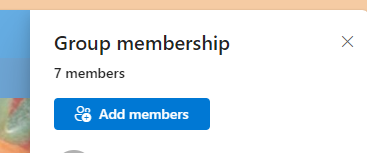
To add members using SharePoint, click on members top right corner of your community, click add members
You search users by either full email or their names. This will also let you select their roles.
To add members using Teams
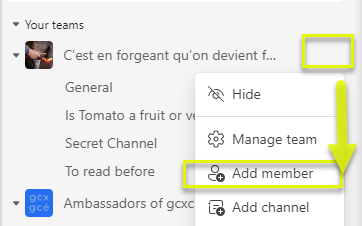
Open your GCX Teams on the browser or app. Click on the 3 dots in front of your community name, and click on Add member.
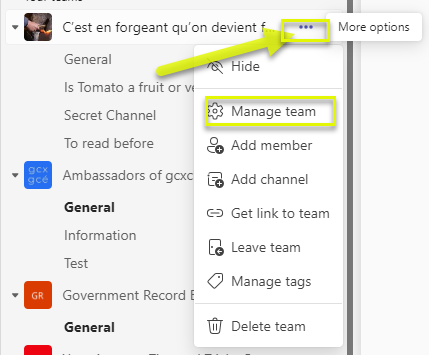
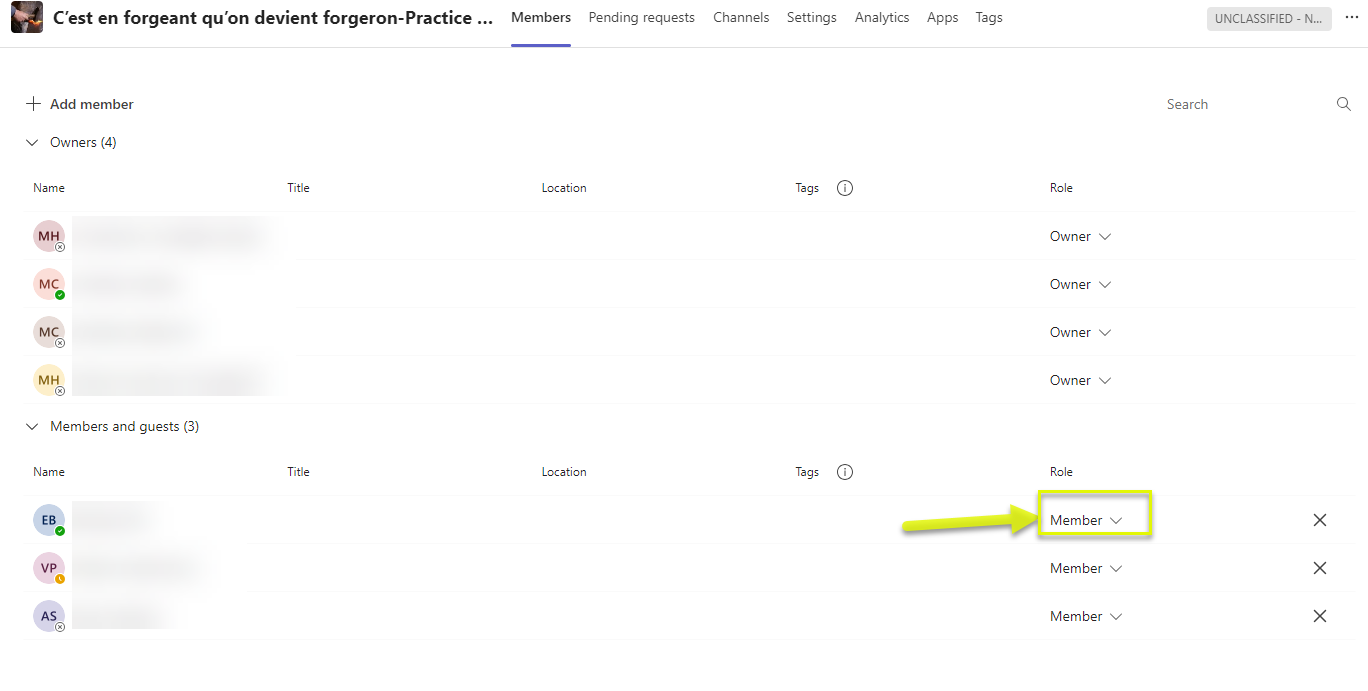
Alternativement, click on the 3 dots in front of you community name, click on Manage team, then add member
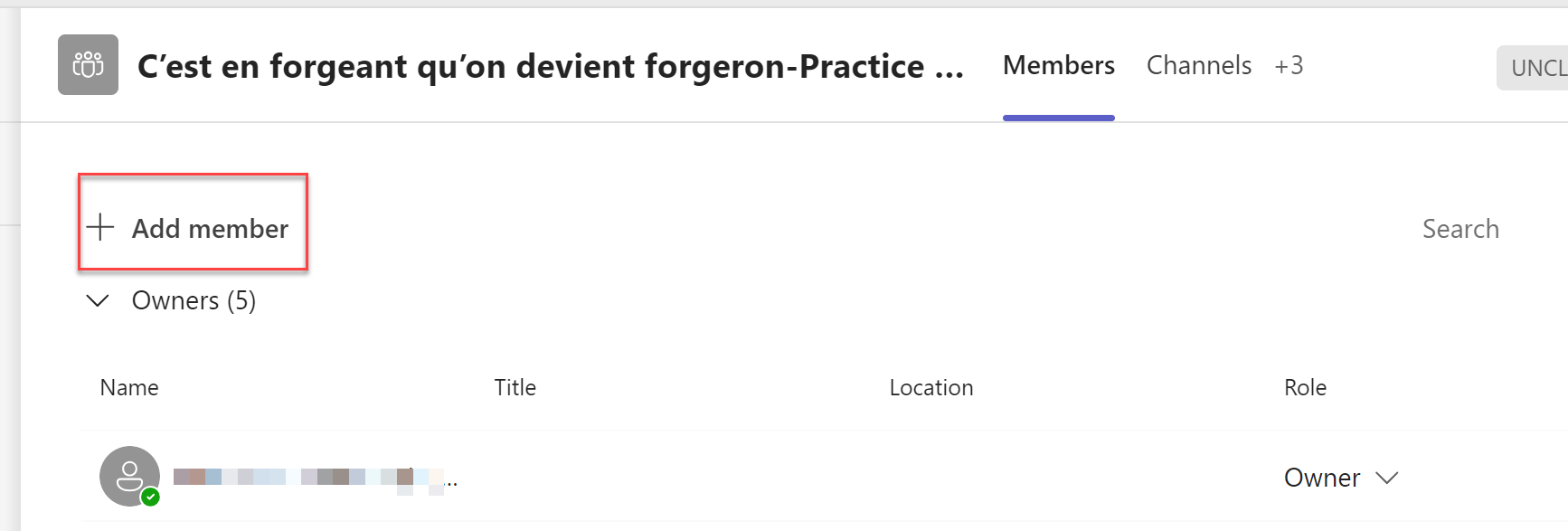
You can change members Roles on the same page as well. Members to Owners and vice versa.
Was this article helpful?
That’s Great!
Thank you for your feedback
Sorry! We couldn't be helpful
Thank you for your feedback
Feedback sent
We appreciate your effort and will try to fix the article