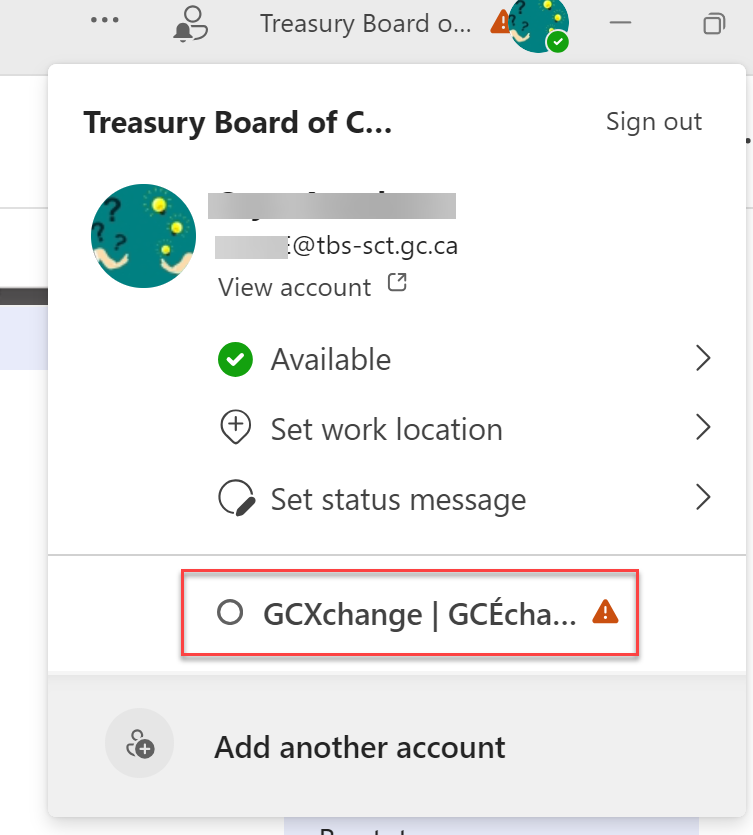
To create a channel, Go to your Community, click Access MS Teams or switch to you Community MS Teams from your organization Teams account.

Alternatively, go to your GCX MS Teams through your organisation
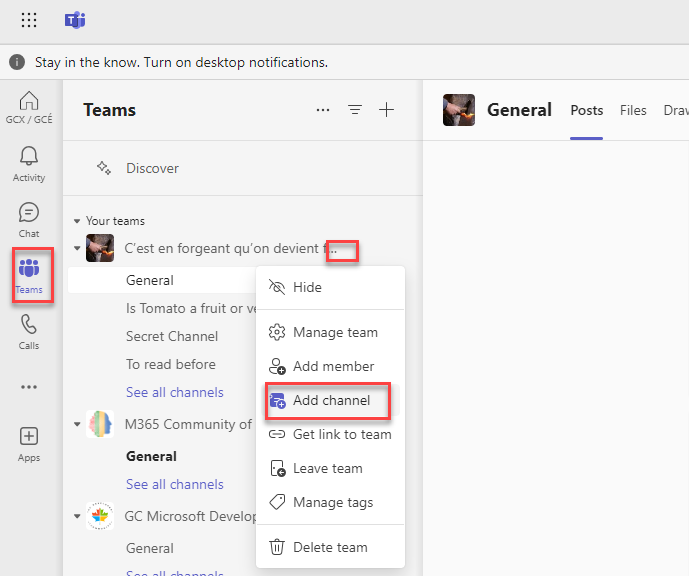
Once on GCX Teams space, click on Teams, then click on the 3 dots in front of your community name, Add channel.
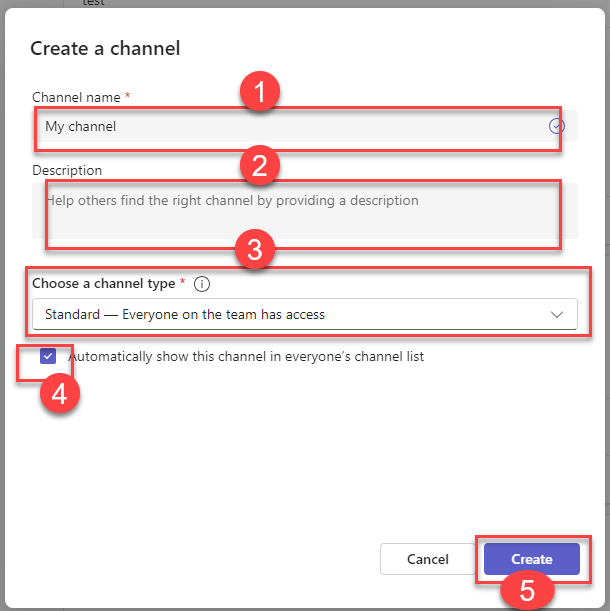
You will be presented a screen, give your channel an appropriate name, a brief description about the channel, select Standard for Channel type, check Automatically show this channel in everyone's channel list and then Create
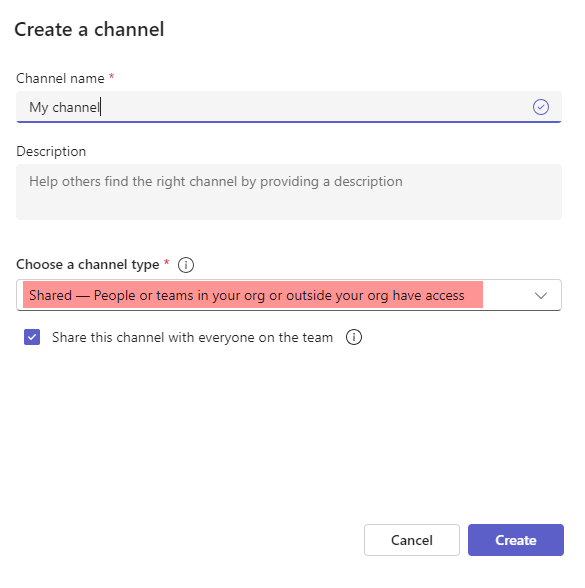
Note: 1- Create Private channel is not available or cannot be created on GCX. All members of the community will have access to the channel
2- The option Share- People or teams in your org or outside your org have access is not available to be used.
Was this article helpful?
That’s Great!
Thank you for your feedback
Sorry! We couldn't be helpful
Thank you for your feedback
Feedback sent
We appreciate your effort and will try to fix the article